
At this website, we wanted to lend you a hand and prepare a post showing you how to tell if someone has accessed your PC. If this topic interests you, take note because we’re going to give you the best tricks to check and the best ways to prevent it. Let’s get started!
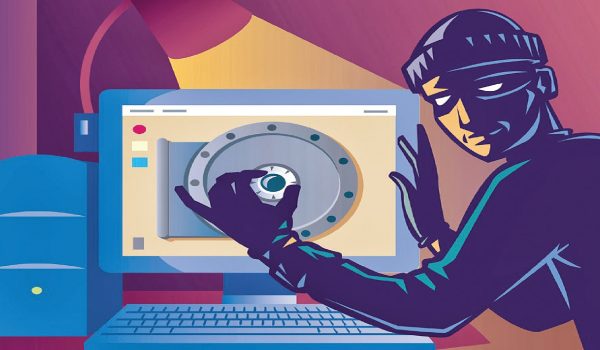
What does the intruder want to see?
The first thing you should do is put yourself in the intruder’s shoes and think about what might interest them on your computer. Thinking like them is one of the best measures you can take, and generally, most hackers who break into other people’s computers do so with the intention of deleting or stealing data stored on the PC, or to install some kind of malicious virus that could compromise your computer’s health.
Fortunately, the vast majority of these actions leave a series of records, traces of processes, file systems or local configuration files, which allow us to know if someone has entered or not.
Check the records
One of the main things you should do is check the logs, which, although not widely known, is much simpler than it seems. On Windows PCs, to check the logs you need to access the Event Viewer, located in Control Panel → Administrative Tools. Once there, you’ll see that each event has an associated date and time, allowing you to determine if someone has accessed your computer intrusively.
Program logs
Once you’ve checked the general logs, you should now check the program logs. This means checking your browser history, search history, cache, etc. Checking your router’s logs is also very effective ; you can do this by accessing its settings.
We also recommend that you get a tool that allows you to access the DNS log, or in other words, the log of browsing requests that have come from your computer. If you see any requests that you didn’t make, you’ll know that someone has indeed accessed your PC.
Recent elements
The option to view recent items is very effective in these cases. To access it, simply enter the command “run” in the search box. A screen will automatically open where you can type each of the commands you want to execute.
There you’ll need to type “Shell:Recent” (without quotes), and you’ll be able to get all sorts of information related to the elements that have been modified. This way, if you didn’t make any of those modifications yourself, it will strongly suggest that someone is accessing your system.
Antivirus software is essential.
At this point, we don’t think it needs to be said, but the reality is that antivirus software is essential if you want to prevent and know if someone has accessed your computer. Sometimes intruders use systems like keyloggers or remote access applications, which collect data while remaining completely undetected.
If you notice your computer is behaving strangely or running slower than usual, it may have been infected with malware. You can check this through the Task Manager, which shows you which processes are running. If any of them look unfamiliar and you didn’t start them yourself, it’s pretty obvious.